iCloud Mail setup
Matcha requires an app-specific password to access your iCloud Mail account. App-specific passwords are available only after two-factor authentication is turned on for your Apple Account.
1. Enable two-factor authentication (if not enabled)
If you already use two-factor authentication you can skip this step.
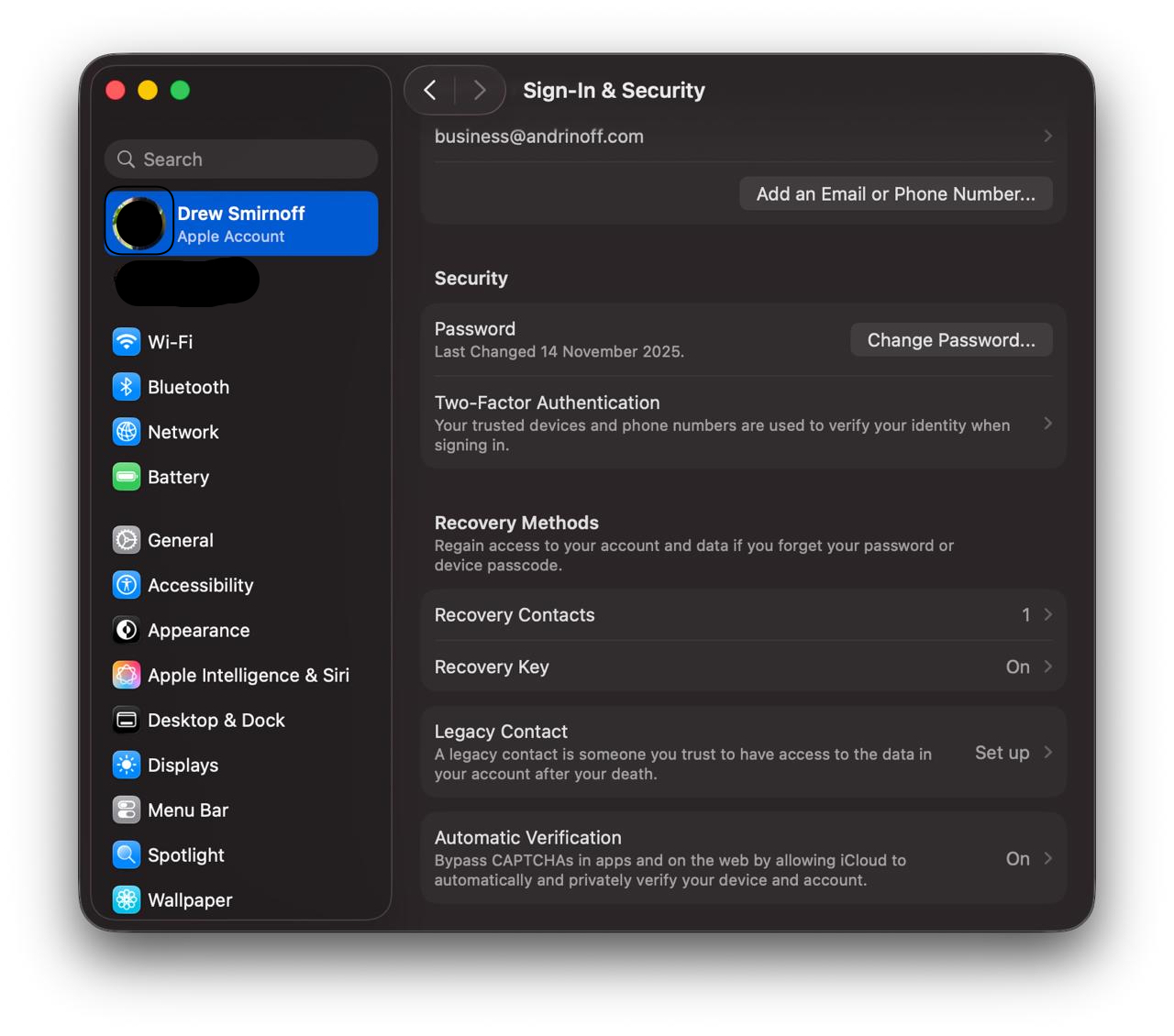
- On your iPhone or iPad, go to Settings > [your name] > Sign-In & Security.
- Tap Turn On Two-Factor Authentication and follow the prompts.
On a Mac, go to System Settings > [your name] > Sign-In & Security and enable it there.
2. Generate an app-specific password
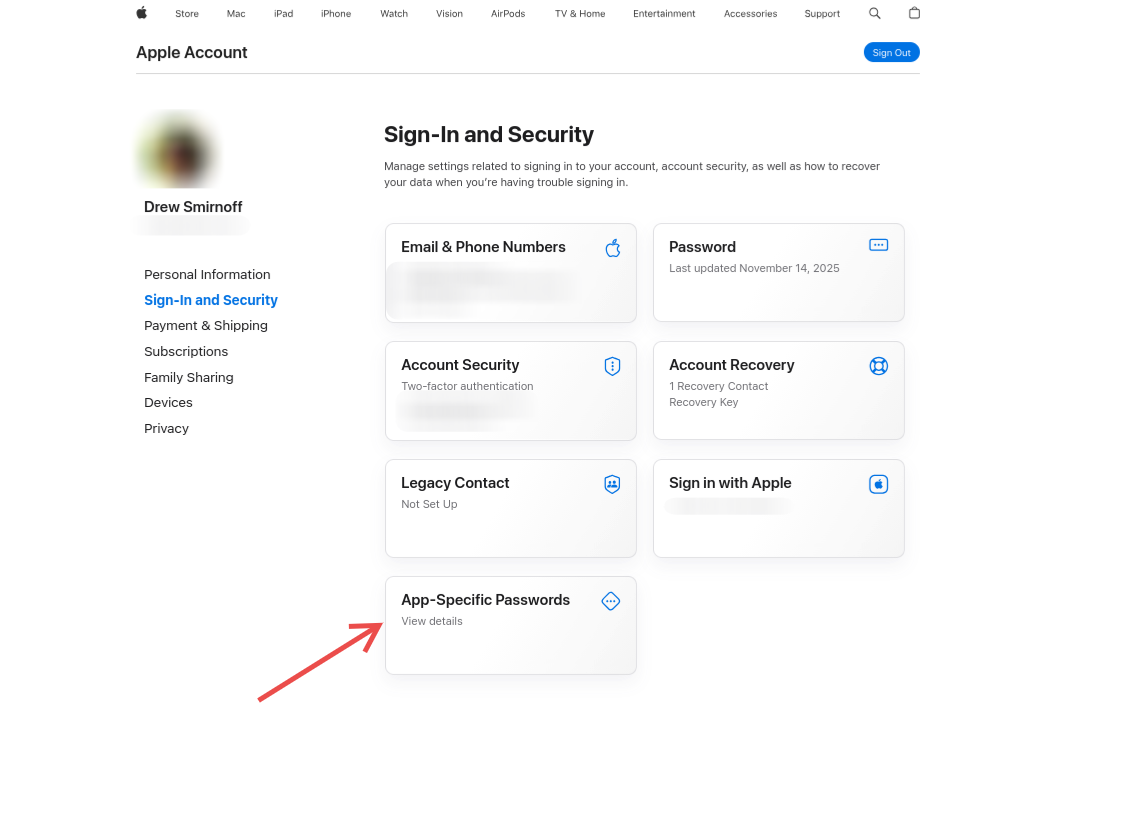
- Sign in at https://account.apple.com.
- In the Sign-In and Security section, click App-Specific Passwords.
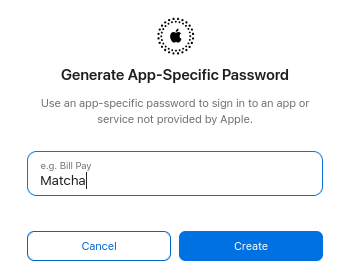
- Click Generate an app-specific password.
- Enter a label for the password (e.g., "Matcha").
-
Click Create.
-
Copy the password shown on screen.
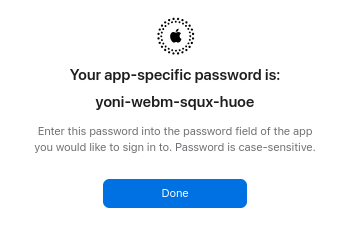
This key is revoked, don't worry
Important: Treat this app-specific password as you would your primary password. Never share it or expose it publicly. The password sits locally on your device and is never shared with us.

3. Open account setup in Matcha
From Matcha, open settings and choose to add a new account.
4. Enter iCloud credentials in Matcha
In Matcha account setup:
- Provider: icloud
- Display name: The name that will appear on the emails you send
- Username: Your iCloud email address (the email you use to sign in to your Apple Account)
- Email Address: The iCloud email address used to fetch messages from (most likely the same as the Username). If you have multiple iCloud email addresses, or custom domain email addresses, you can add them as separate accounts in Matcha, each with the same app-specific password.
- Password: The generated app-specific password (not your normal Apple Account password)
Troubleshooting
| Issue | Solution |
|---|---|
| Invalid credentials | Verify you're using the app-specific password, not your regular Apple Account password. |
| "App-Specific Passwords" option missing | Confirm two-factor authentication is enabled for your Apple Account. |
| Connection still fails | At account.apple.com, revoke the current app-specific password and generate a new one. Then update your credentials in Matcha. |